Why Is My Phone Storage Full Even After Deleting Everything? 9 Ways to Fix It
- Mobile Phone Technology
smartcomedy
- 0
- 25 minutes read
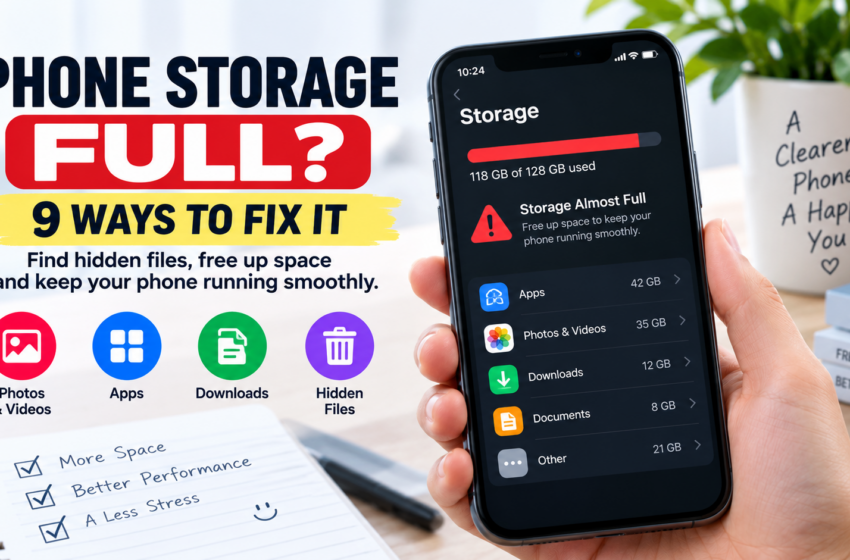
Have you deleted photos, videos, apps, and other files, but your phone still says “Storage Full” or “Storage Almost Full”?
You’re not alone. Deleting files doesn’t always free as much space as you expect. Your phone may still be holding deleted items, app data, cached files, downloads, messaging media, or other hidden files.
The good news is that you don’t have to delete everything to get your storage back.
Here are 9 practical ways to find what’s taking up your space and safely free it up.
1. Check What Is Taking Up Your Storage
Before deleting anything else, find out what’s actually using your storage.
Open your phone’s Settings and look for Storage. On some phones, it may be under Battery and device care, Device care, or a similar menu.
You’ll usually see categories such as:
- Apps
- Photos and videos
- Documents
- Downloads
- Audio
- System
- Other files
Look at the largest category first. This shows you where most of your storage is going.
Tip: Don’t start deleting random files before checking your storage breakdown. You may be trying to fix the wrong problem.
2. Empty Your Trash or Recently Deleted Folder
This is one of the easiest things to overlook.
When you delete photos or videos, your phone or photo app may move them to a Trash, Bin, or Recently Deleted folder instead of removing them permanently.
Open your gallery or photo app and check for a folder with one of these names.
If you’re certain you no longer need the files, permanently delete them.
Large videos can take up a lot of space, so emptying this folder can sometimes make a noticeable difference.
3. Check WhatsApp Storage
If you use WhatsApp regularly, it could be one of the biggest reasons your storage keeps filling up.
Over time, WhatsApp can accumulate:
- Videos
- Photos
- GIFs
- Voice messages
- Documents
- Stickers
- Forwarded media
Open WhatsApp’s storage-management section and look for large files and chats using the most space.
Instead of deleting an entire conversation, remove unnecessary large media while keeping the chat itself.
Also check your media-download settings. If photos and videos are automatically downloaded, your storage can fill up again quickly.
4. Clear App Cache
Apps can create temporary files called cache to make certain tasks faster.
Over time, some apps can accumulate a considerable amount of cached data.
On many Android phones, you can check this through:
Settings → Apps → Select an app → Storage
If you see Clear cache, you can use it to remove temporary files.
Be careful, though.
Clear cache and Clear storage/data are not the same thing.
Clearing an app’s storage or data can remove saved information and may sign you out. If you’re unsure, don’t use it.
5. Clean Your Downloads Folder
Your Downloads folder may contain files you downloaded months ago and completely forgot about.
Check for things such as:
- Old PDFs
- Videos
- Images
- Documents
- ZIP files
- APK files
- Duplicate files
If your file manager allows you to sort files by size, start with the largest ones.
You may find that a few large files are responsible for much of your missing storage.
6. Uninstall Apps You No Longer Use
Take a quick look through your installed apps.
You may find games, shopping apps, editing apps, or other applications you haven’t opened in months.
Large games and editing apps can use a significant amount of storage, especially when they download additional files.
If you don’t need an app anymore, uninstall it.
You can always download it again later if necessary.
Before uninstalling anything important, make sure any information you need from the app is backed up.
7. Remove Offline Downloads
Streaming apps can store movies, music, podcasts, maps, and other content directly on your phone for offline use.
These downloads can quietly consume several gigabytes.
Check apps where you download content and remove anything you no longer need.
For example, if you downloaded several videos for a trip months ago and never watched them, deleting those offline copies can free up space without affecting your account.
8. Find and Remove Large Videos
Videos usually take up much more space than ordinary photos.
Open your gallery or file manager and look for your largest videos.
Pay particular attention to:
- Screen recordings
- Duplicate videos
- Downloaded social-media videos
- Old recordings
- Videos you received through messaging apps
If a video is important, back it up first.
Once you’ve confirmed that your backup is safe, you can remove the local copy from your phone.
Never delete an important file that doesn’t exist anywhere else.
9. Restart Your Phone and Check Storage Again
After cleaning your phone, restart it.
Then go back to your storage settings and check how much free space you have.
Sometimes the storage calculation doesn’t update immediately after you remove a large amount of data.
If your phone is still almost full, check the storage breakdown again.
Pay attention to categories such as Apps, System, or Other. If one of these is unusually large, investigate it before deleting more personal files.
Why Does My Phone Storage Keep Filling Up?
If you free up several gigabytes and your storage becomes full again soon afterward, something may be continuously creating or downloading new files.
Common causes include:
- Automatic photo and video downloads
- WhatsApp media
- App cache
- Large app updates
- Offline content
- Downloads
- Screen recordings
- Duplicate files
- New photos and videos
The solution isn’t always to keep deleting files.
You need to find what is continuously using your storage and change the setting or app responsible.
What Should You Not Delete From Your Phone?
Be careful when cleaning your storage.
You shouldn’t randomly delete files just because you don’t recognize their names.
Avoid deleting:
- System files
- Important documents
- Photos without a backup
- Files belonging to apps you don’t understand
- App data unless you know what it does
If you’re unsure about a file, leave it alone until you’ve confirmed what it is.
What If My Phone Says Storage Is Full But I Can’t Find Anything Large?
This can happen when storage is being used by apps, cached data, messaging media, offline downloads, system files, or other categories that aren’t obvious from your gallery.
Go back to your phone’s Storage settings and examine each category.
If Apps is taking up most of the space, check individual apps.
If Photos and videos is large, review your gallery and recently deleted items.
If Other or System appears unusually large, don’t start deleting system files manually. Use your phone’s built-in storage-management tools first.
How Can I Stop My Phone Storage From Filling Up Again?
Once you’ve cleaned your phone, a few simple habits can help keep it from filling up again.
Review your downloads regularly. Delete files you no longer need.
Control automatic media downloads. This is particularly useful for messaging apps.
Remove unused apps. If you haven’t used an app for months, consider whether you really need it.
Back up important photos and videos. This gives you more flexibility when your phone starts running low on space.
Check your storage occasionally. It’s much easier to remove a few unnecessary gigabytes than to wait until your phone is completely full.
Frequently Asked Questions
Why is my phone storage full even after deleting photos?
Your deleted photos may still be in a Trash or Recently Deleted folder. Other files, including videos, apps, WhatsApp media, downloads, and cached data, may also be using your storage.
How do I free up phone storage quickly?
Start by checking your storage settings. Then empty your recently deleted folder, remove large videos, clean your Downloads folder, review WhatsApp media, delete offline downloads, and uninstall apps you no longer use.
Does clearing cache free up storage?
Yes, clearing cached data can recover some storage, although the amount varies by app. Cache may also build up again as you continue using the app.
Why does my phone storage keep filling up?
Your phone may be continuously downloading or creating new files. Automatic media downloads, app data, videos, offline content, and downloads are common causes.
Should I delete system files to free up storage?
No. Don’t manually delete system files unless you know exactly what they are and your phone specifically provides a safe way to remove them.
How can I free up storage without deleting photos?
Check your Downloads folder, uninstall unused apps, remove offline downloads, clear app cache where appropriate, and review large messaging-app files first. You can also back up photos and videos before removing local copies.
Quick Storage Cleanup Checklist
Need to free up space right now? Work through this checklist:
- ☐ Check Settings → Storage to see what’s using the most space.
- ☐ Empty your Trash/Recently Deleted folder.
- ☐ Review and delete unnecessary WhatsApp photos and videos.
- ☐ Clear the cache of apps that are using a lot of space.
- ☐ Clean out your Downloads folder.
- ☐ Uninstall apps and games you no longer use.
- ☐ Remove old offline downloads from streaming apps.
- ☐ Find and delete or back up your largest videos.
- ☐ Restart your phone and check your available storage again.
- ☐ Keep some free space so the problem doesn’t return quickly.
Quick tip: Start with the largest storage category first. You can often recover several gigabytes without deleting anything important.
The Bottom Line
If your phone storage is full even after deleting files, don’t panic and don’t start deleting everything you see.
First, check what’s actually using your storage. Then work through the biggest sources: recently deleted files, WhatsApp media, cached data, downloads, unused apps, offline content, and large videos.
Once you find the real storage hog, you can free up space without sacrificing important files.