How to Fix CapCut Export Failed & Video Lagging on Mobile
- Content Creation
smartcomedy
- 0
- 7 minutes read
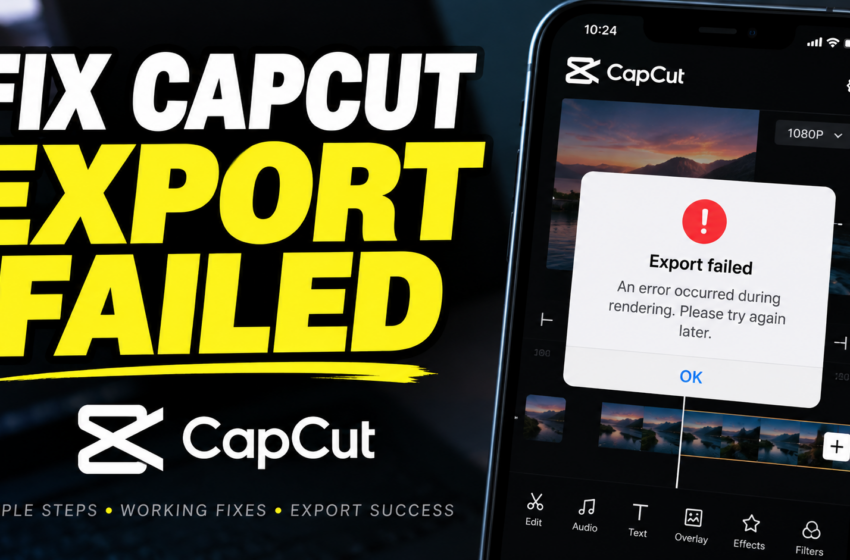
Few things are as frustrating as finishing a video edit in CapCut, pressing export, and getting an “Export Failed” error or watching the rendering bar freeze at 99%. Even before exporting, dealing with severe timeline lag, delayed playback, and dropped frames makes video editing nearly impossible.
If CapCut is crashing, lagging, or failing to save your project on Android or iPhone, this guide covers the exact step-by-step fixes to resolve these issues quickly.
Quick Pre-Check Checklist Before diving into advanced settings, check these basic requirements:
- Check Free Storage: CapCut requires temporary system storage to process and encode video files. Ensure your mobile device has at least 2 GB to 5 GB of free internal space.
- Close Background Apps: Heavy memory (RAM) usage from running background apps can crash CapCut during rendering. Close all open apps before exporting.
- Update CapCut: Ensure you are running the latest version of the app from the Google Play Store or Apple App Store to avoid known system bugs.
Part 1: How to Fix CapCut “Export Failed” Errors Fix 1: Lower Export Resolution and Frame Rate Exporting in 4K resolution at 60 frames per second (FPS) requires significant processing power. If your mobile processor overheats or runs out of RAM, the export will fail.
- Open your project in CapCut.
- Tap the resolution drop-down menu in the top-right corner (next to the export arrow).
- Lower the Resolution from 4K to 1080p (or 720p if failures persist).
- Lower the Frame Rate from 60 FPS to 30 FPS.
- Tap Export again.
Fix 2: Clear CapCut App Cache Accumulated temporary cache files can corrupt project files and prevent successful rendering. Clearing cache inside CapCut will not delete your saved video drafts.
- Open CapCut and tap the Settings icon (gear) in the top right corner of the homepage.
- Select Clear Cache.
- Confirm the prompt and restart the app.
Fix 3: Locate and Replace Corrupted Clips or Effects A specific glitching effect, transition, filter, or corrupted media clip can halt the export process at a specific percentage (e.g., stopping consistently at 45%).
- Note the percentage where the export fails.
- Scrub to that corresponding position in your project timeline.
- Remove or replace heavy text templates, complex filters, or third-party sticker overlays around that timestamp.
- Try exporting again.
Part 2: How to Fix CapCut Preview Lag & Frame Drops Fix 1: Reduce Timeline Preview Quality High-resolution raw video footage can cause the editor timeline to stutter during editing playback.
- Open CapCut project settings or preview settings.
- Lower the playback resolution within the editor settings to smooth out performance while editing (this will not lower final export quality).
Fix 2: Pre-Render Heavy Effects If your video features multiple overlay layers, green screen tracks, and heavy transition effects:
- Select a heavily edited section of your timeline.
- Export that short section individually as a standalone video.
- Re-import that single combined video file back into your main project timeline and delete the stacked effect layers.
Final Workflow Tips for Mobile Creators To prevent CapCut performance issues on future projects:
- Keep project file lengths manageable by cutting long footage prior to adding heavy visual effects.
- Avoid editing videos while your mobile phone is charging, as device overheating causes severe processor throttling and rendering crashes.