Why Is My Phone Battery Draining So Fast? 12 Fixes That Actually Work
- Mobile Phone Technology
smartcomedy
- 0
- 23 minutes read
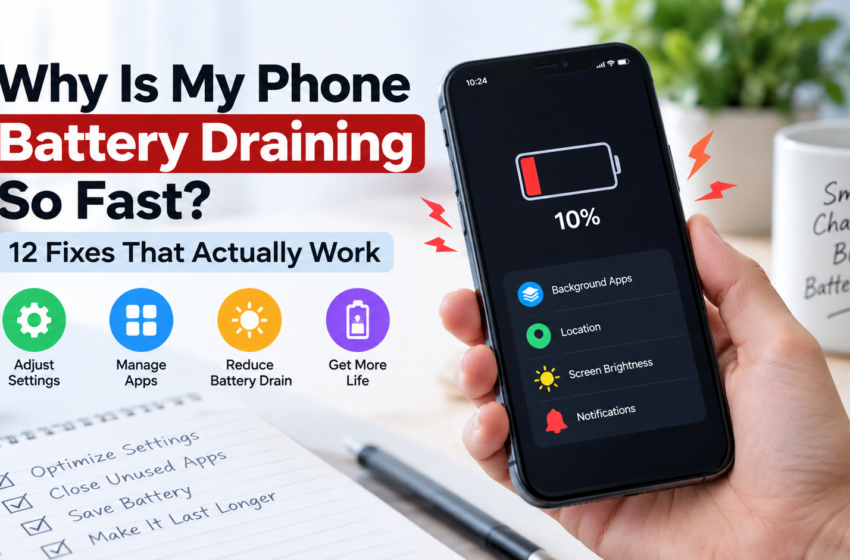
Have you noticed that your phone battery is dropping much faster than it used to?
Maybe you charge your phone in the morning and it is already low by afternoon. Or perhaps the battery percentage suddenly drops while you’re barely using the phone.
A fast-draining battery doesn’t always mean that your phone needs a new battery. An app running in the background, a bright screen, weak network signal, location services, outdated software, or other settings could be using more power than you realize.
Before replacing your phone or buying a new battery, try these 12 fixes.
1. Check Which Apps Are Using the Most Battery
The first thing to do is find out what’s actually draining your battery.
On many Android phones, go to:
Settings → Battery → Battery usage
The exact wording may be different depending on your phone.
Look at the apps near the top of the list. If an app is using an unusually large amount of battery, it may be the reason your battery is disappearing so quickly.
If you barely use the app but it is consuming a lot of power, consider restricting its background activity, updating it, or uninstalling it if you don’t need it.
2. Lower Your Screen Brightness
Your screen can use a significant amount of battery, particularly when brightness is set very high.
Try lowering the brightness to a comfortable level.
You can also turn on Adaptive Brightness if your phone supports it. This allows the screen brightness to adjust automatically according to the surrounding light.
You don’t need your display at maximum brightness all day.
3. Reduce Your Screen Timeout
If your screen stays on for several minutes every time you stop using your phone, you’re wasting battery.
Go to your display settings and look for Screen timeout, Sleep, or a similar option.
Choose a shorter period, such as 30 seconds or 1 minute, if that works for you.
This small change can prevent your screen from staying unnecessarily active.
4. Check Apps Running in the Background
Some apps continue performing tasks even when you’re not actively using them.
Social media, shopping, messaging, navigation, and other apps may refresh content in the background.
Check your battery settings to see which apps are consuming power.
For apps that don’t need constant background activity, consider limiting their background usage.
Be careful with messaging and other apps where you need timely notifications. Restricting background activity can sometimes delay notifications.
5. Turn Off Features You Aren’t Using
Some phone features can use additional power when they’re active, especially when they’re constantly searching for or maintaining connections.
When you aren’t using them, consider turning off features such as:
- Bluetooth
- Personal hotspot
- NFC
- Location services
You don’t have to disable everything permanently.
For example, if you turned on a hotspot to share your connection earlier but no longer need it, switch it off.
Similarly, turn off Bluetooth or NFC when you aren’t using them.
6. Check Your Location Settings
Location services can use additional battery, especially when apps repeatedly request your location.
Review which apps have access to your location.
If an app doesn’t need your location, consider changing its permission.
For apps that only need your location occasionally, you may be able to allow access only while the app is being used.
7. Use Battery Saver When You Need It
Most modern phones have a Battery Saver, Power Saving, or similar mode.
It can reduce background activity and limit certain power-hungry features when your battery is running low.
You don’t necessarily need to keep Battery Saver on all the time.
It’s particularly useful when you know you’ll be away from a charger for several hours.
8. Check Your Mobile Signal
Here’s something many people don’t think about: a weak mobile signal can cause your phone to work harder to maintain a connection.
If your phone constantly switches between different network signals or struggles to maintain a connection, battery consumption can increase.
If you notice that your battery drains much faster in certain locations, compare your battery usage when you have a strong signal with areas where the signal is weak.
If the problem happens mainly in places with poor coverage, the network connection may be contributing to the battery drain.
9. Update Your Apps and Phone Software
An outdated app can sometimes have bugs or processes that use more power than expected.
Check your app store for available updates.
Also check your phone’s software settings for system updates.
Updates can include performance improvements and fixes for problems that may affect battery life.
Avoid installing updates from unknown websites or unofficial sources.
10. Stop Unnecessary Notifications
Every notification can wake your screen or cause your phone to perform background activity.
You don’t need notifications from every app.
Review your notification settings and turn off alerts you don’t care about.
For example, if a shopping app sends you several promotional notifications every day, you may not need all of them.
You’ll get a cleaner notification panel and may reduce unnecessary activity.
11. Restart Your Phone
If your battery suddenly starts draining much faster than normal, try restarting your phone.
A restart can close processes that may have become stuck or behaving unusually.
After restarting, monitor your battery for several hours.
If the drain returns, check your battery usage again to identify the app or feature responsible.
12. Check the Condition of Your Battery
If you’ve tried everything above and your battery still drains extremely quickly, the battery itself may have degraded.
Rechargeable batteries naturally lose capacity as they age.
Look for a Battery health, Battery information, or similar option if your phone provides one.
If the battery is old, damaged, swollen, or becoming unusually hot, don’t ignore it.
A damaged battery should be inspected by a qualified technician rather than opened or repaired yourself.
⚠️ IMPORTANT: What to Do If Your Phone Battery Is Dangerous
If your phone is swollen, smoking, leaking, making hissing or popping sounds, producing a strong unusual smell, or becoming extremely hot, treat it as a potential battery emergency.
If there is smoke, fire, or a rapidly heating battery:
- Stop using the phone immediately.
- Do not touch or pick it up if it is dangerously hot, smoking, or burning.
- Keep people and pets away from the area.
- Do not puncture, squeeze, open, or attempt to remove the battery.
- Do not attempt to repair the phone yourself.
- Move to a safe location and contact your local emergency service or fire service.
If the phone is swollen but not hot, smoking, or burning, stop charging and using it and have it inspected by a qualified technician as soon as possible.
Never continue charging a damaged or swollen battery. Safety comes before saving the phone.
Why Is My Phone Battery Draining Even When I’m Not Using It?
If your phone loses a lot of battery while sitting unused, something may be running in the background.
Possible causes include:
- Apps refreshing in the background
- Poor network signal
- Location services
- Notifications
- Automatic syncing
- Bluetooth or other connections
- Software problems
- An aging battery
Check your Battery usage screen first.
If one particular app is responsible for a large percentage of the battery consumption, investigate that app before changing dozens of other settings.
Why Does My Phone Battery Drain Faster After an Update?
It’s possible for battery usage to temporarily change after a major software update.
Your phone may perform background tasks such as optimizing apps, syncing information, or processing files.
Give the phone some time and monitor the battery usage.
If the problem continues, check which apps are using the most power and make sure your apps are updated.
Why Does My Phone Get Hot While the Battery Is Draining?
Heat and rapid battery drain can occur when the phone is working hard.
Gaming, video recording, navigation, streaming, charging, poor signal conditions, and demanding apps can all increase the phone’s workload.
If your phone becomes unusually hot, stop demanding activities and let it cool down.
If it repeatedly becomes extremely hot without an obvious reason, have it checked by a qualified technician.
Should You Keep Your Phone on Battery Saver All the Time?
You can, but you don’t necessarily need to.
Battery Saver is most useful when you need your battery to last longer.
Depending on your phone, it may reduce background activity, performance, visual effects, or other features.
If you need maximum performance and immediate background activity, you may prefer to use it only when your battery is low.
When Should You Replace Your Phone Battery?
Consider having the battery checked if:
- Battery life has become dramatically shorter
- Your phone shuts down unexpectedly
- The battery percentage drops unusually quickly
- The phone becomes unusually hot
- The battery appears swollen
- Your phone is several years old and the battery has noticeably degraded
If you suspect physical battery damage, don’t try to open the phone yourself.
Get it inspected by a qualified repair professional.
Quick Battery-Saving Checklist
If your battery is draining fast, work through this list:
- ☐ Check Battery usage for power-hungry apps.
- ☐ Lower your screen brightness.
- ☐ Shorten your screen timeout.
- ☐ Restrict unnecessary background activity.
- ☐ Turn off unused features such as hotspot, Bluetooth, and NFC.
- ☐ Review location permissions.
- ☐ Use Battery Saver when necessary.
- ☐ Check whether poor signal is affecting battery life.
- ☐ Update your apps and phone software.
- ☐ Turn off unnecessary notifications.
- ☐ Restart your phone.
- ☐ Check the condition of an old or damaged battery.
The Bottom Line
A phone battery that drains quickly doesn’t automatically mean you need a new phone.
Start by checking which apps and features are using the most power. Then reduce unnecessary screen brightness, background activity, location use, notifications, and connections.
If you’ve tried these fixes and your battery is still disappearing unusually quickly, the battery itself may be worn out or there could be another hardware or software problem.
Find the cause first — then choose the solution.